
Tools & Models · GPT-6 Astra · Computer Use
Three Ways Codex Can Use a Computer on GPT-6 Astra
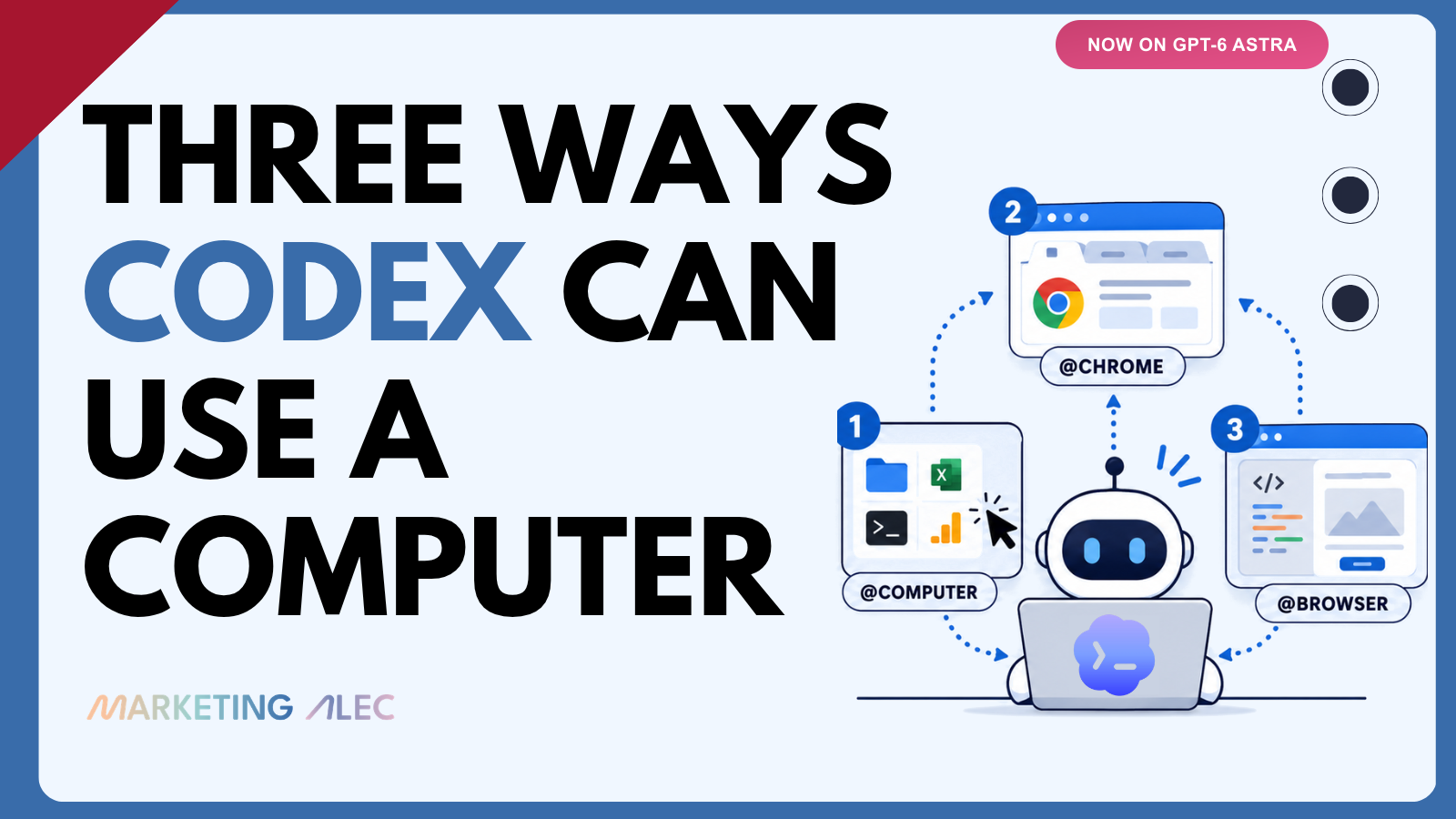
Computer Use, the browser extension, and the in-app browser, now running on GPT-6 Astra. Three surfaces, one rule for picking the right one.
Jason Liu gave Codex one job: sit in an Amazon support queue and get the refund for a stolen package. Check the chat every five minutes, switch to every minute when a human shows up, do whatever it takes. Then he went to take a shower. He came back to a finished refund.
That's the shift. Not a chatbot answering a question, but software that opens your apps and gets the work done. Codex does it three ways, and they overlap just enough to be confusing. Here's each one, when to reach for it, and the rule that keeps them straight.
1. Computer Use (@Computer): the whole desktop, now on GPT-6 Astra
This is the powerful one, and the one Astra changed the most. Codex sees and operates your screen (windows, menus, keyboard, clipboard) on macOS and Windows, in the apps you approve. It's the broadest surface, and it used to be the slowest, because it has to look, click, then check the result. Astra cut that gap: roughly 2x faster at Computer Use than GPT-5.6 Sol, at a 72.6% score on OSWorld 2.0, the benchmark built to test exactly this. It still runs anything, including apps with no API and no plugin, and on macOS it still works in the background: you'll open an app and realize Codex has been quietly grinding through a workflow the whole time.
For marketers, that's the messy long tail no integration ever covers:
- Pull spend out of a legacy DSP or local-TV buying tool whose only "export" is a clunky desktop dashboard.
- Batch-export 40 creative variations from a design app that has no API.
- Reconcile last month's numbers across QuickBooks, a Google Sheet, and three ad dashboards that don't talk to each other.
- Run a competitor's iOS app in the simulator and screenshot their full onboarding funnel.
- Chain several apps at once: grab data from a desktop analytics tool, drop it in Sheets, and post the summary to Slack, all while you're in a meeting.
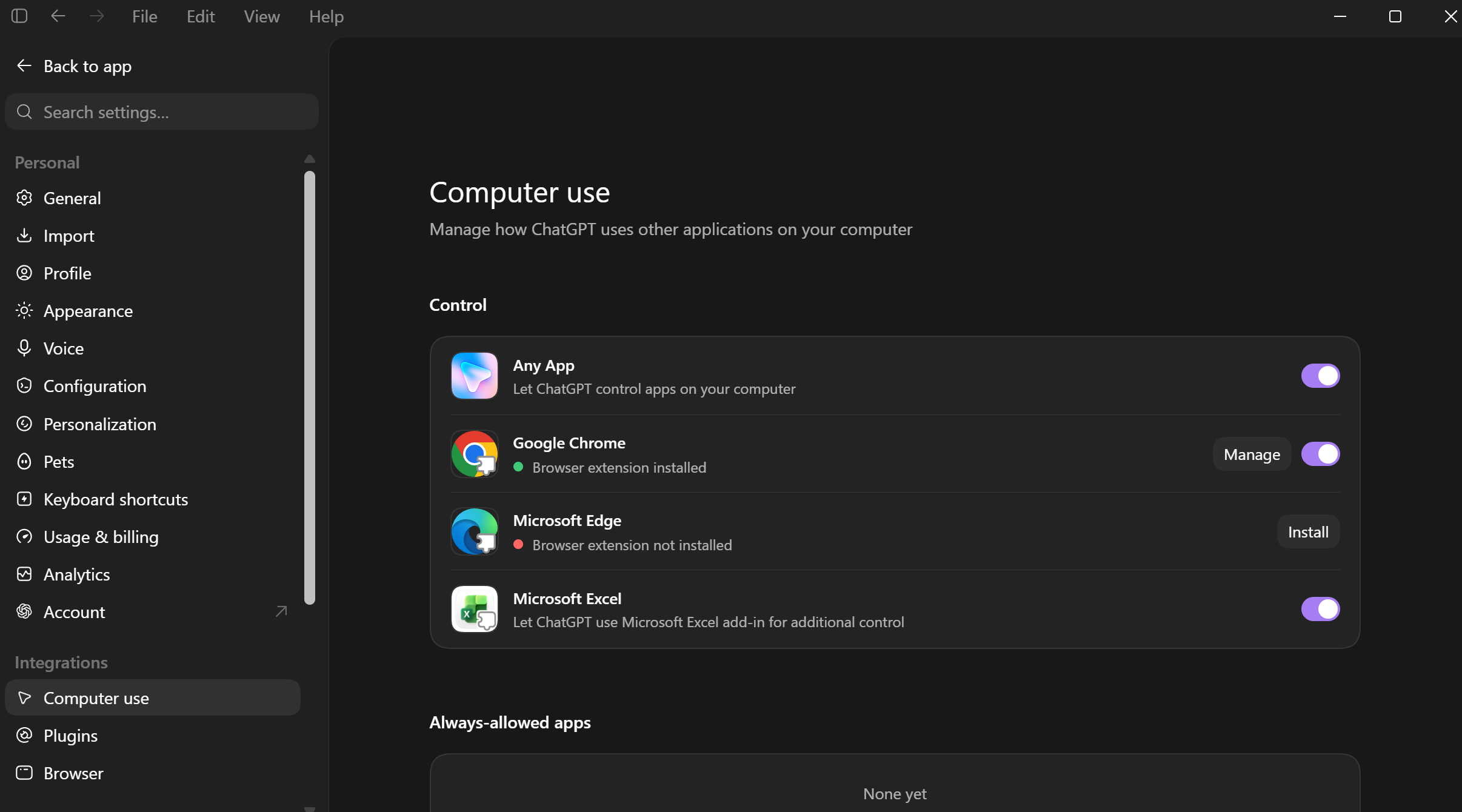
@Computer. It's also the broadest trust boundary of the three, so give it one clear app or task at a time and stay present for anything touching money, accounts, or credentials. 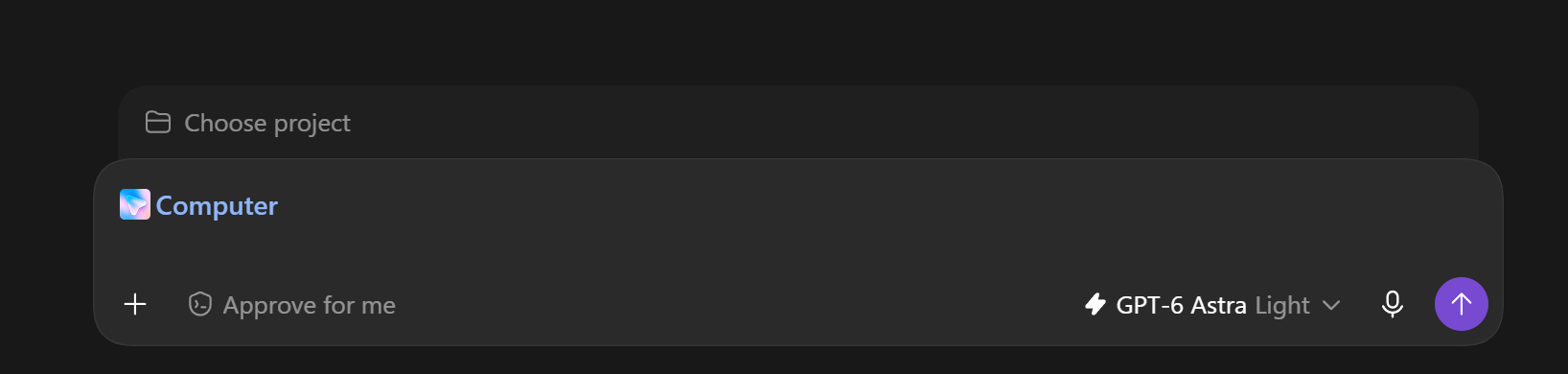
2. Browser extension (@Chrome): your signed-in browser
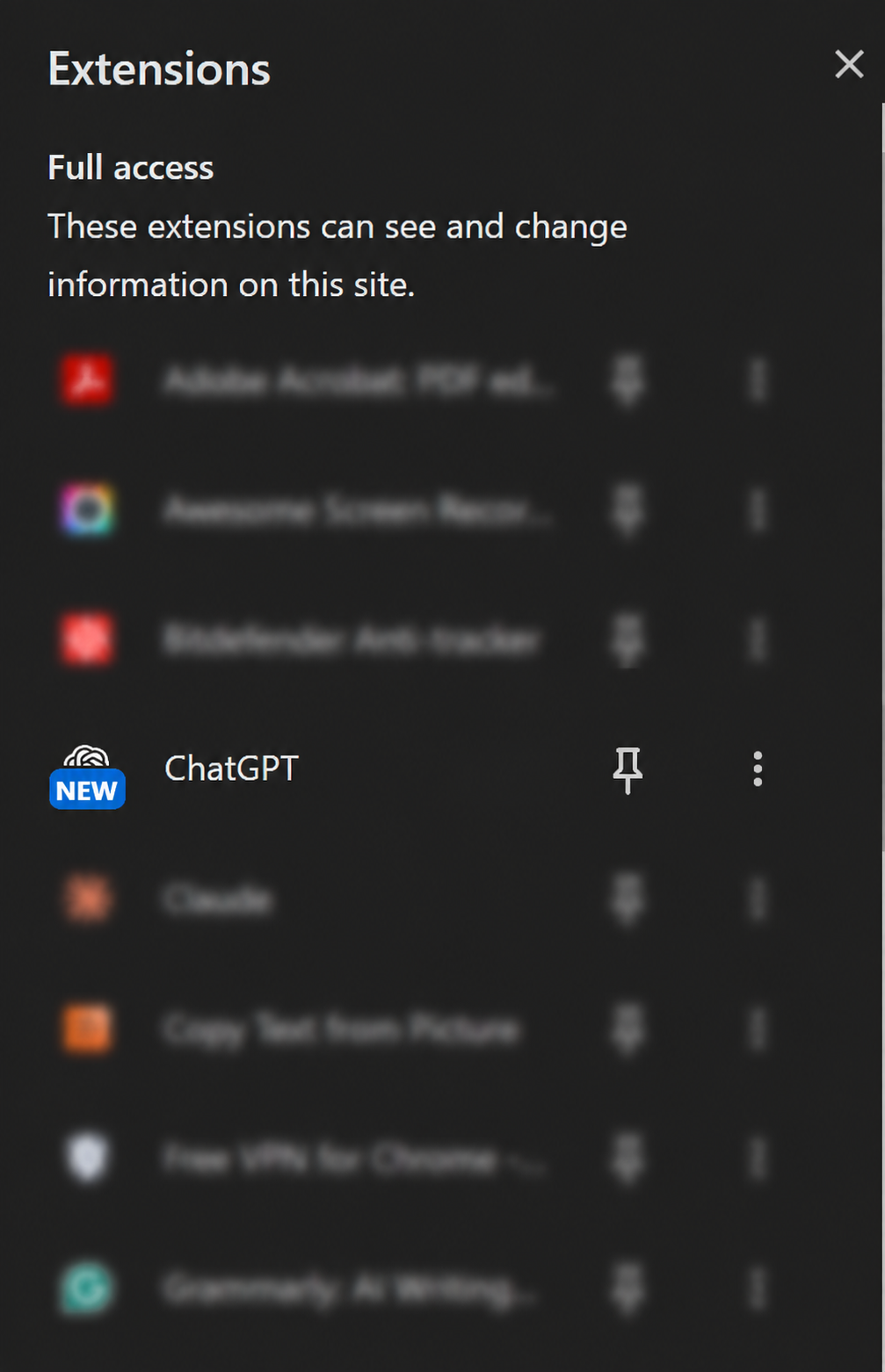
Codex drives your real, signed-in browser: your cookies, your profile, your logged-in tabs. It treats the job as a browser workflow, not a list of screen clicks. The edge is multi-tab: read context in one, compare it in a second, act in a third. It launched as a Chrome-only extension, and now also runs in Edge, Brave, Opera, and Vivaldi, with the side-panel chat available everywhere but Opera. It runs on GPT-6 Astra too, just without Computer Use's speed jump, since reading tabs was never the slow part.
This is where the weekly reporting chore goes to die. Google Ads in one tab, Meta Ads Manager in another, LinkedIn Campaign Manager in a third, GA4 in a fourth, all done. Ask for this week's spend, CPA, and ROAS in one summary, then go do something that actually moves the number, as it can be slow.
- Use it for: cross-channel ad reporting, prospecting and ABM (one founder had it click into every event registrant's LinkedIn to qualify them), auditing competitor pages while signed in, cleaning a CRM view.
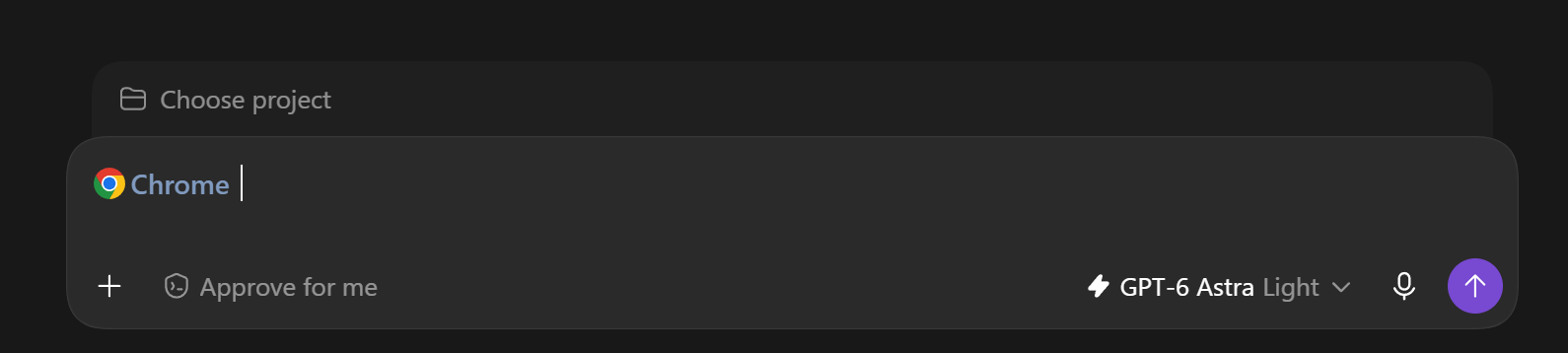
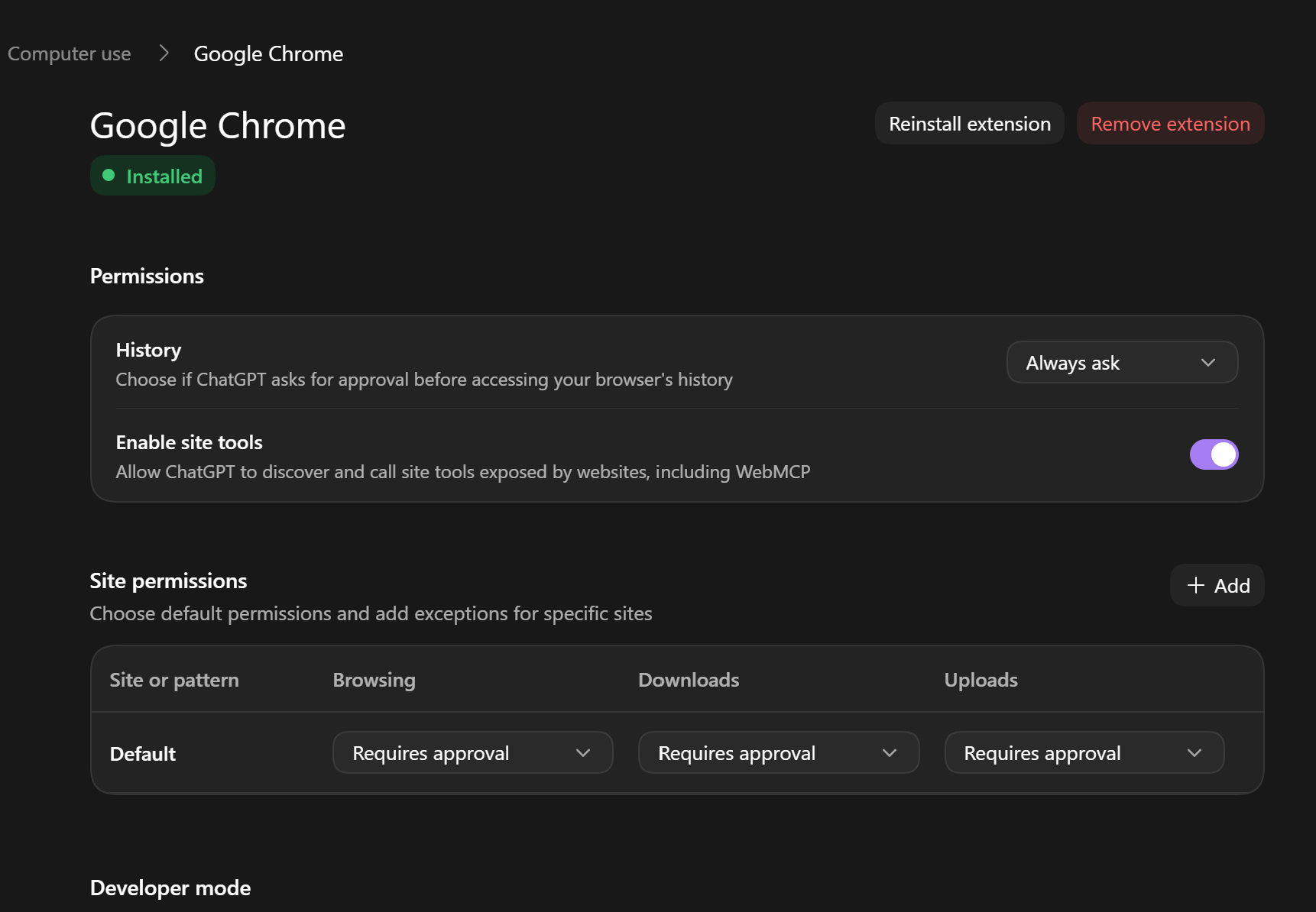
- Turn it on: Settings → Computer Use → toggle on Google Chrome (installs the extension from the Chrome Web Store if it isn't already), then sign in. Works the same way in Edge, Brave, Opera, and Vivaldi. Trigger with
@Chrome.
3. In-app browser (@Browser): the build-and-debug loop
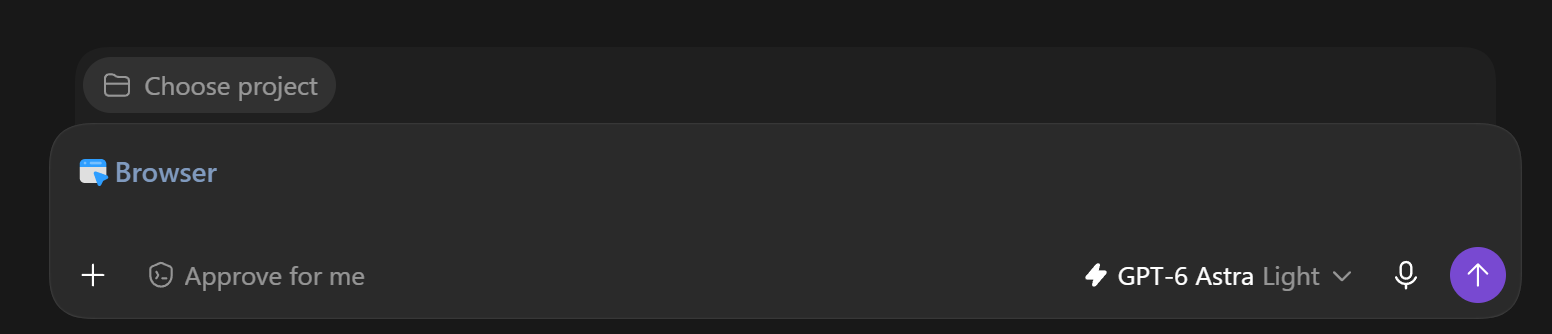
A browser that lives inside the Codex thread. It's isolated: no cookies, no profile, no extensions. Wrong for logins, right for building. You and Codex see the same rendered page, so it can edit code, reload, screenshot, and repeat, on the same GPT-6 Astra model as the other two surfaces.
For marketers, this is your landing-page and microsite room. Hand Codex a campaign brief, have it build the page, open it, then click straight on the hero: "this headline is buried, make it the first thing." It edits and reloads. The page becomes the brief, which feels a lot closer to working next to a designer than trading screenshots.
- Use it for: building landing pages and one-page client reports, QA'ing your site's mobile layout, reproducing a checkout bug, previewing an email template's responsive behavior.
- Turn it on: Settings → Browser, turn it on. Trigger with
@Browser.
CMD+CMD to hand Codex the front window (an error, a competitor's ad, a design) as context, with no control granted. Quick pick
Match the job to the surface
| If you need to... | Use |
|---|---|
| Use a plugin, MCP server, or connector that already exists | That, first. Faster and more reliable than visual control. |
| Work an app with no API, or a job across the whole desktop | @Computer |
| Do a browser task that needs your login | @Chrome |
| Build or debug a page | @Browser |
A few ways to start
- Computer Use, on Astra: "Pull last month's spend out of [legacy DSP], drop it in a Google Sheet," now roughly 2x faster than it ran on Sol.
- Browser extension: "Summarize this week's spend, CPA, and ROAS across my Google Ads, Meta, and LinkedIn tabs."
- In-app browser: "Build a landing page from this brief, then make the headline bigger once I can see it."
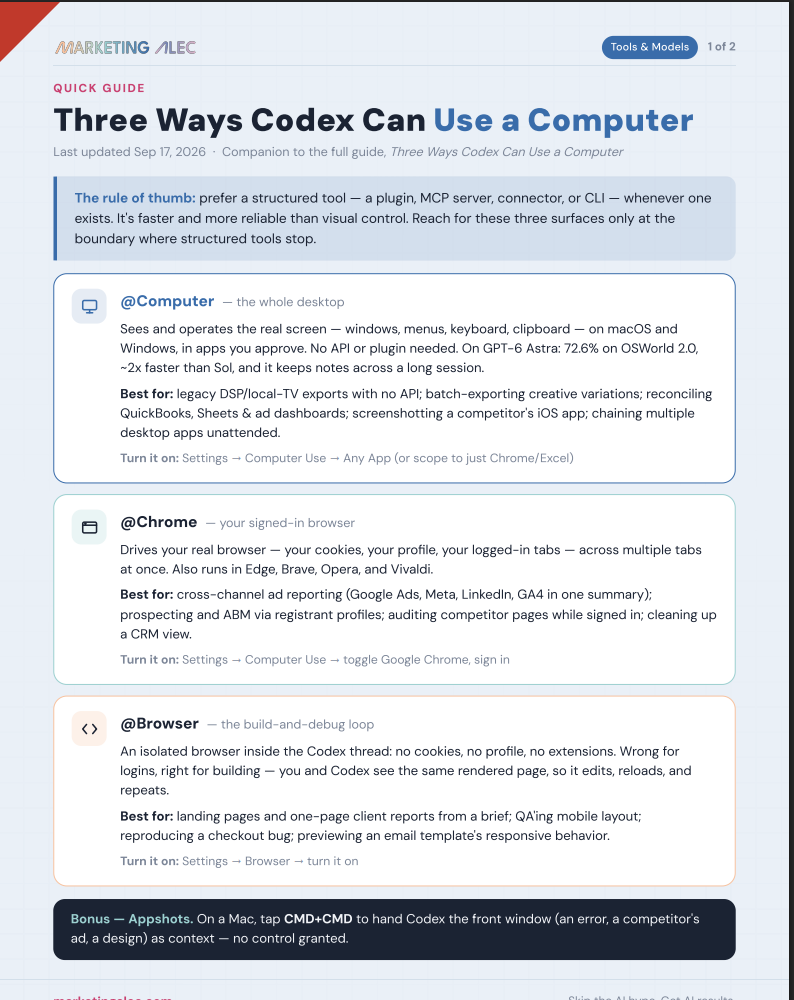
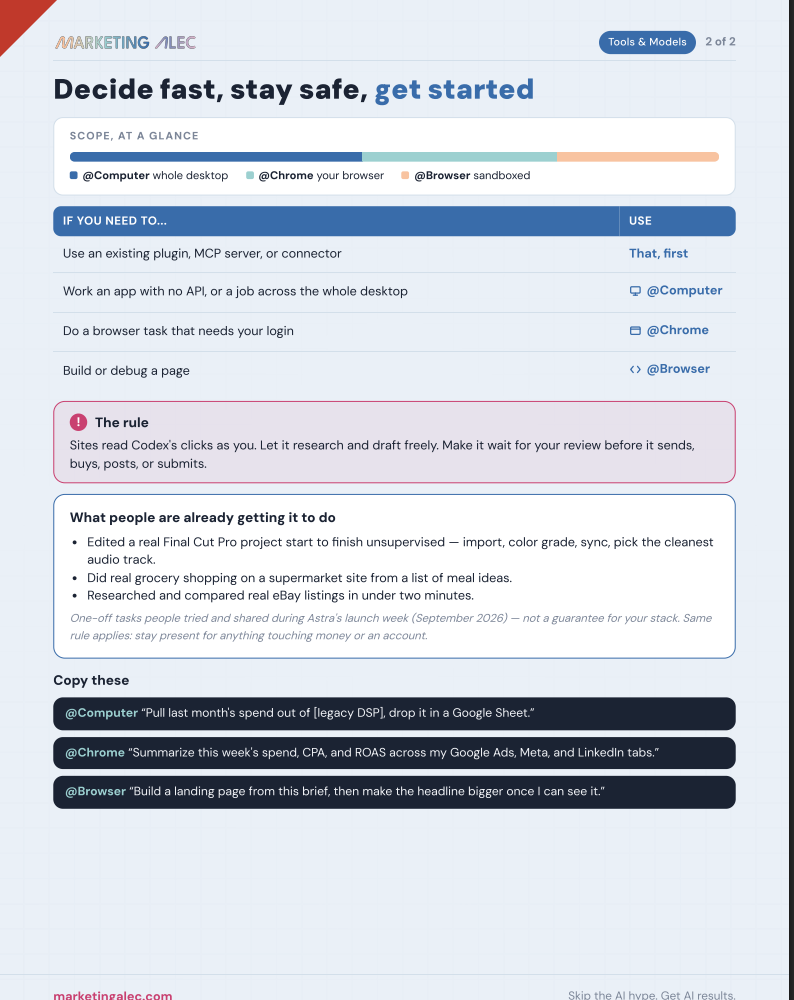
Keep this one handy
Save the clickable version so the next time someone asks which surface to use, you have got the answer open in a tab.
GPT-6 Astra for Marketers: 10 Tips for Week One
Astra now powers Work and Codex. Tip 5 is turning computer use on the moment you get it.
Learn more, officially
Official (OpenAI):
Frequently asked questions
What is Codex Computer Use?
Does GPT-6 Astra change what Computer Use can do?
Is it safe to let Codex use my browser with my accounts logged in?
Does the browser extension only work in Chrome?
What's the difference between the browser extension and the in-app browser?
Which surface should I default to?
Go deeper
Three Ways Claude Can Use a Computer
The same computer use, browser, and desktop-agent breakdown, for Anthropic's tools instead of OpenAI's.
Claude vs ChatGPT for Marketers
Pick the right model for the job before you pick which surface it acts through.
Who's behind this? Alec Newcomb, Founder of MarketingAlec and ScaledOn, tests these tools on real client work every week.
Meet Alec →