
Automation & Workflows · Claude Cowork · Quick Guide
10 Claude Cowork Tips for Marketers
10 setups that turn Claude Cowork into a real marketing teammate: brain files, dispatch, connectors, and more. Get the full clickable cheat sheet.
Claude Cowork runs the same agentic engine as Claude Code, just without a terminal. It opens from the regular Claude desktop app, reads and organizes your files, and works through connectors and plugins instead of hand-wired MCP servers.
Most marketers who open Cowork for the first time use it like a chat window: ask a question, get an answer, close it. That skips almost everything that makes it useful. The real leverage is in the setup, the brain file, the connectors, the dispatch habit, that turns it from a chatbot into something that actually does your work.
Here are the 10 features worth learning, what each one actually does, and how to put it to work on real marketing tasks.
AI Agents Aren't Just Smarter Chatbots
The distinction that makes the rest of this guide make sense: an agent doing your work versus a chatbot answering your questions.
The 10 tips
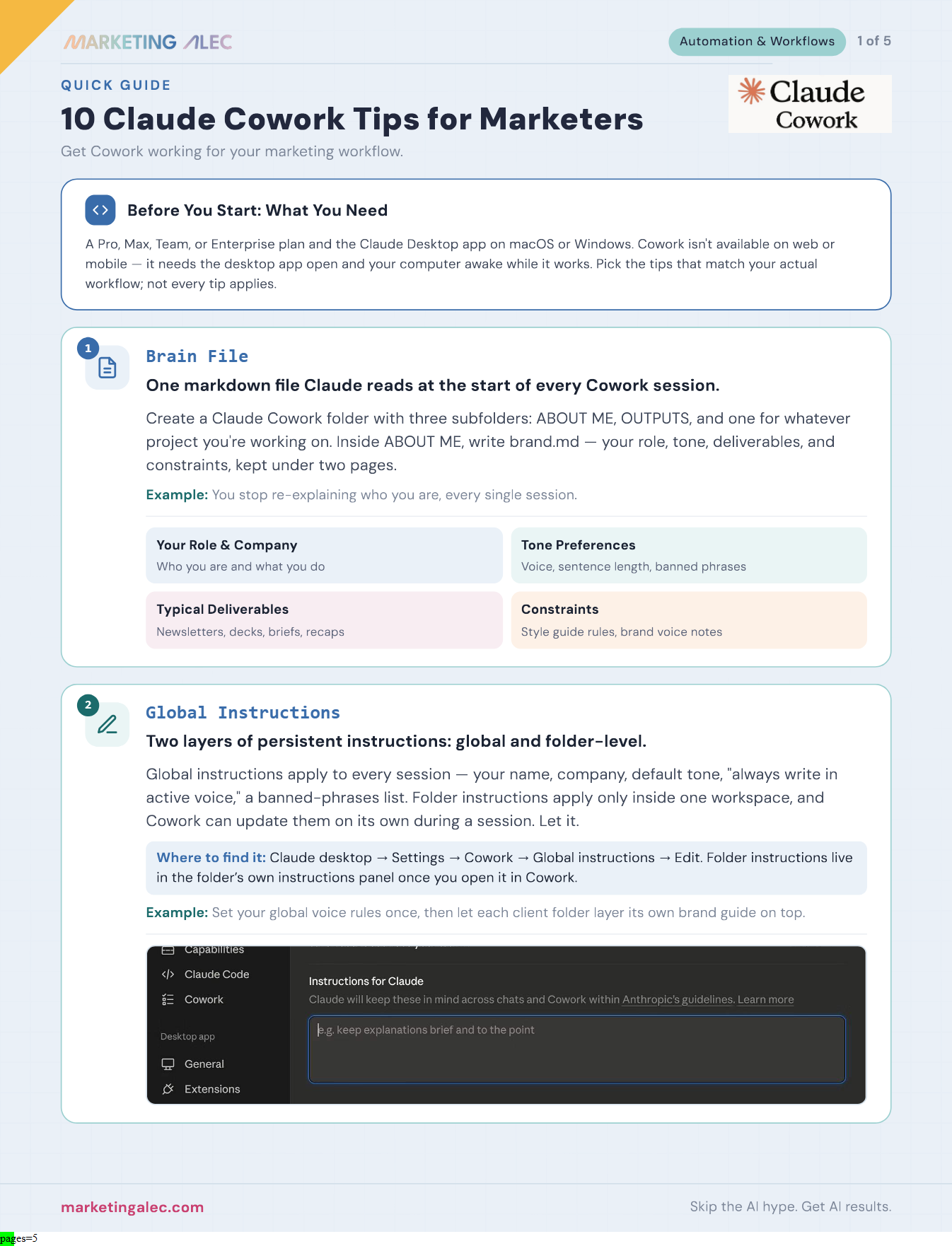
1. The ABOUT ME file (brain file)
Anthropic's own docs call this the ABOUT ME file, commonly saved as about-me.md (Alec's own convention names it brand.md), a persistent file in your Cowork folder that Claude reads automatically before every session. Cover five things: who you are and what you do, your tone and writing style, your audience, what you hate seeing in Claude's output, and the rules it must never break. Once it's written, you stop re-explaining who you are at the start of every task.
2. Global Instructions
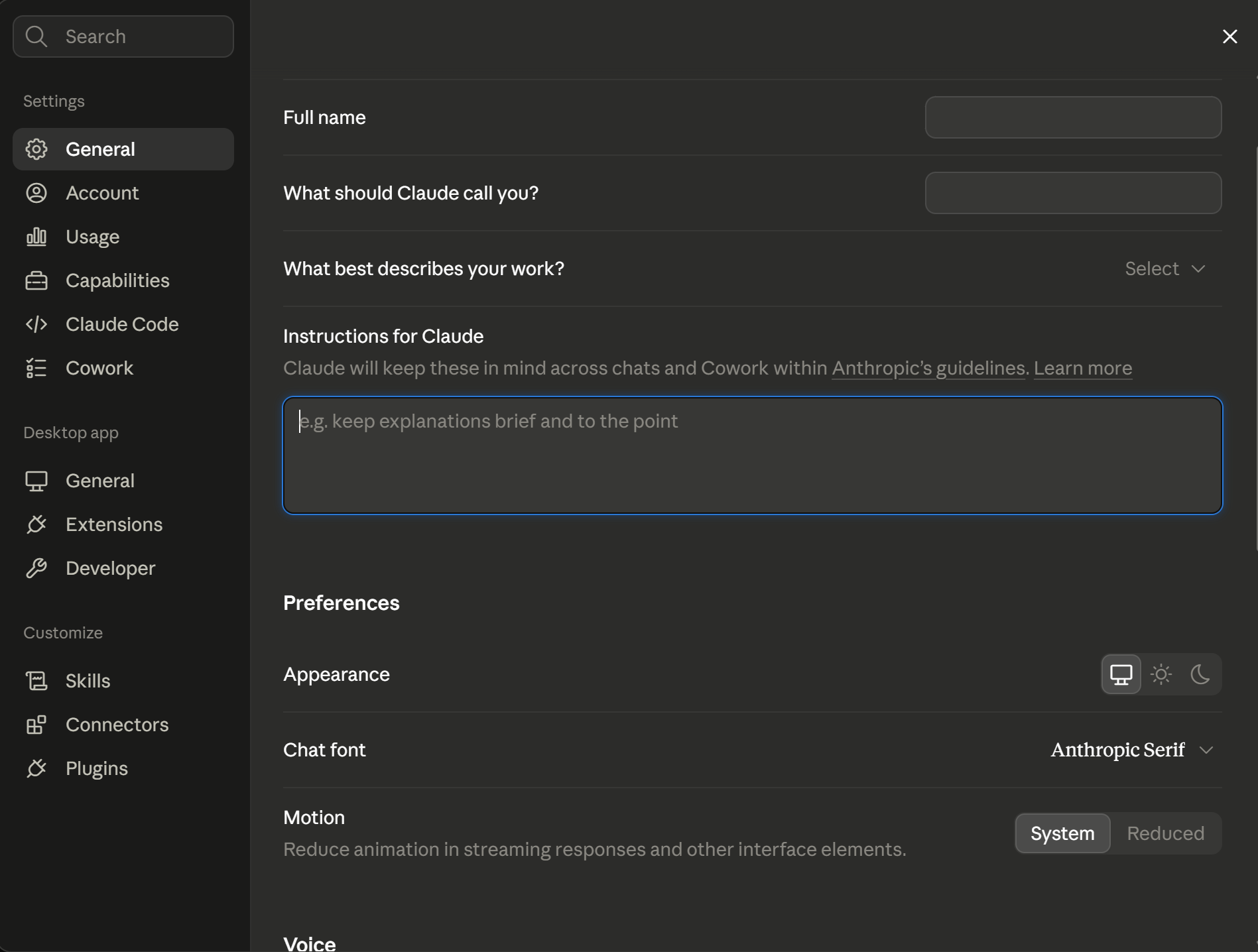
Set these once under Settings → Cowork → Edit Global Instructions and they apply to every session going forward: your name, company, default voice, banned phrases. Layer folder or project-specific instructions on top for anything client-specific. Cowork can even update those mid-session if it notices something worth capturing, and letting it do that is how one account's voice stops bleeding into another's.
3. Your first real test: organize a messy folder
This isn't a named feature, it's the best first exercise. Point Cowork at a real folder, old downloads, screenshots, meeting notes, and say: “Organize this. Group by type. Move anything that looks like spam to a Review folder.” Watching it actually touch your files in real time is what converts skeptics on your team faster than any explanation does.
4. Dispatch
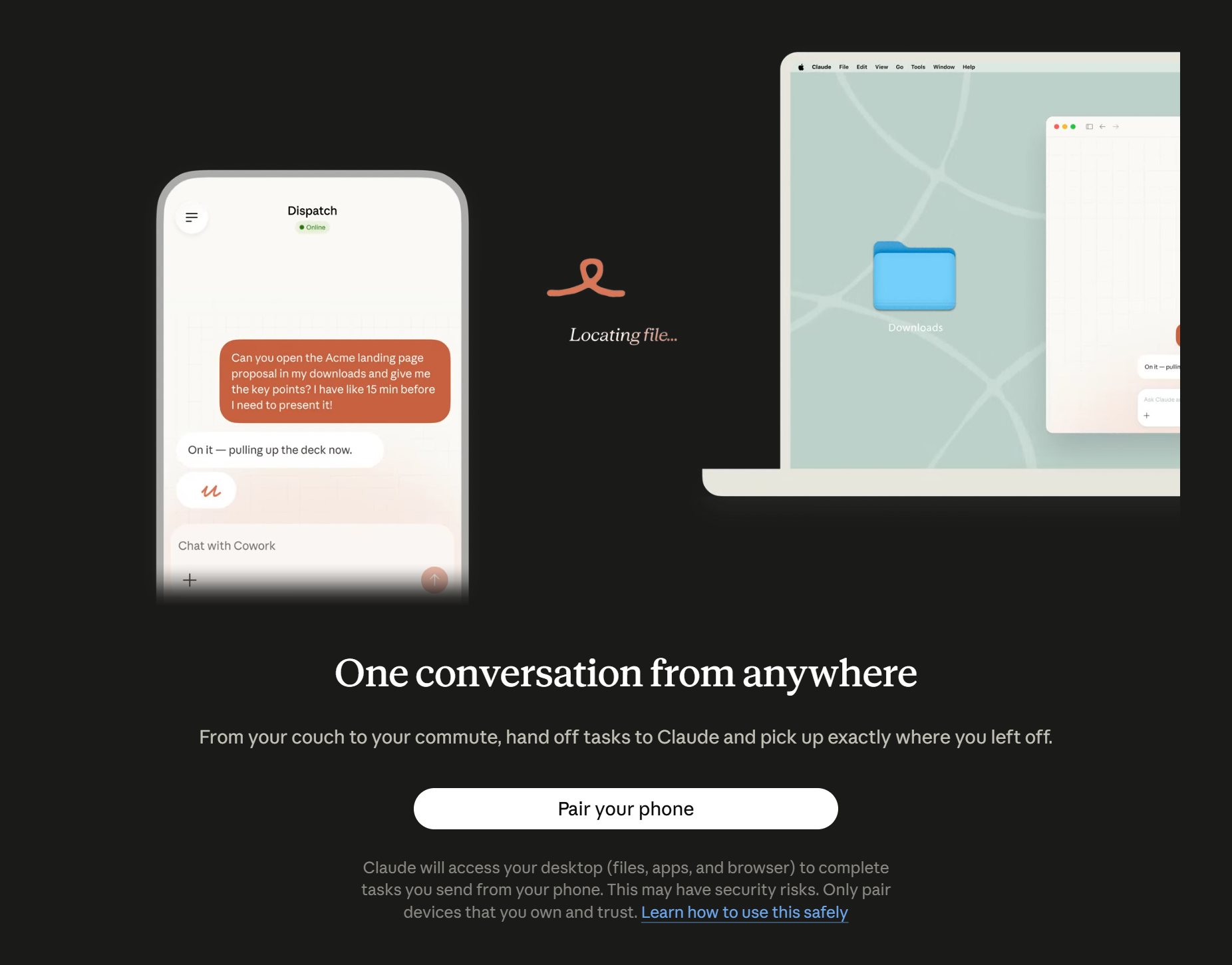
Dispatch keeps one persistent thread that connects your phone to your desktop: the work still runs on your computer, with access to its local files, connectors, and plugins, your phone is just where you assign a task, check on it, and collect the result. Walk out of a meeting, type the follow-up task into the mobile app, and the file is waiting on your desktop by the time you sit back down.
5. Schedule
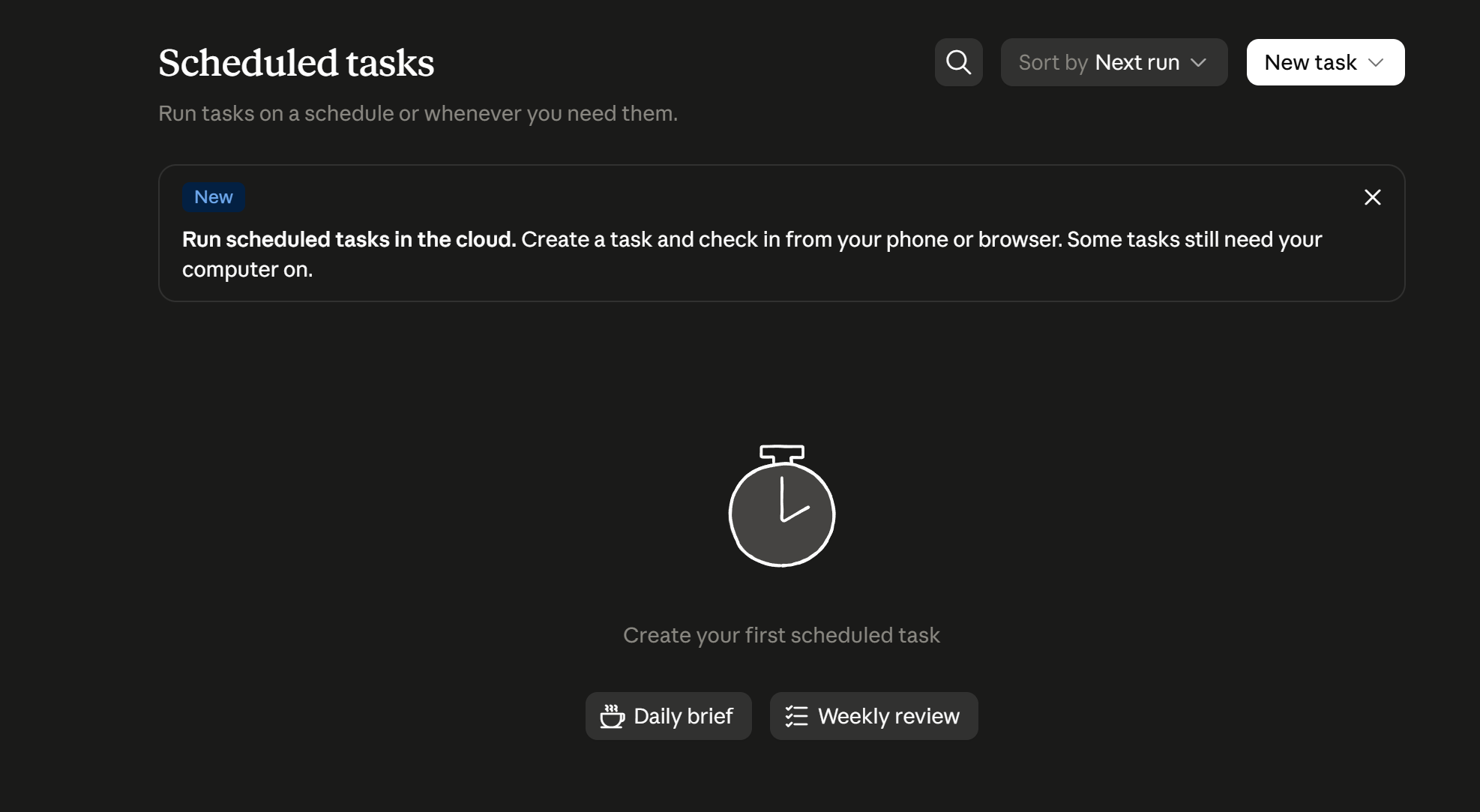
Type /schedule inside any Cowork task to save it as a recurring job: hourly, daily, weekdays, or weekly. As of Anthropic's current documentation, these now run on Anthropic's cloud infrastructure and fire on schedule even with your laptop asleep or the desktop app closed, the one exception is a task that needs local files or a local app, which still needs your computer available. That's a meaningfully better constraint than earlier in 2026, so don't assume you need Claude Code's Routines just to get an always-on morning brief.
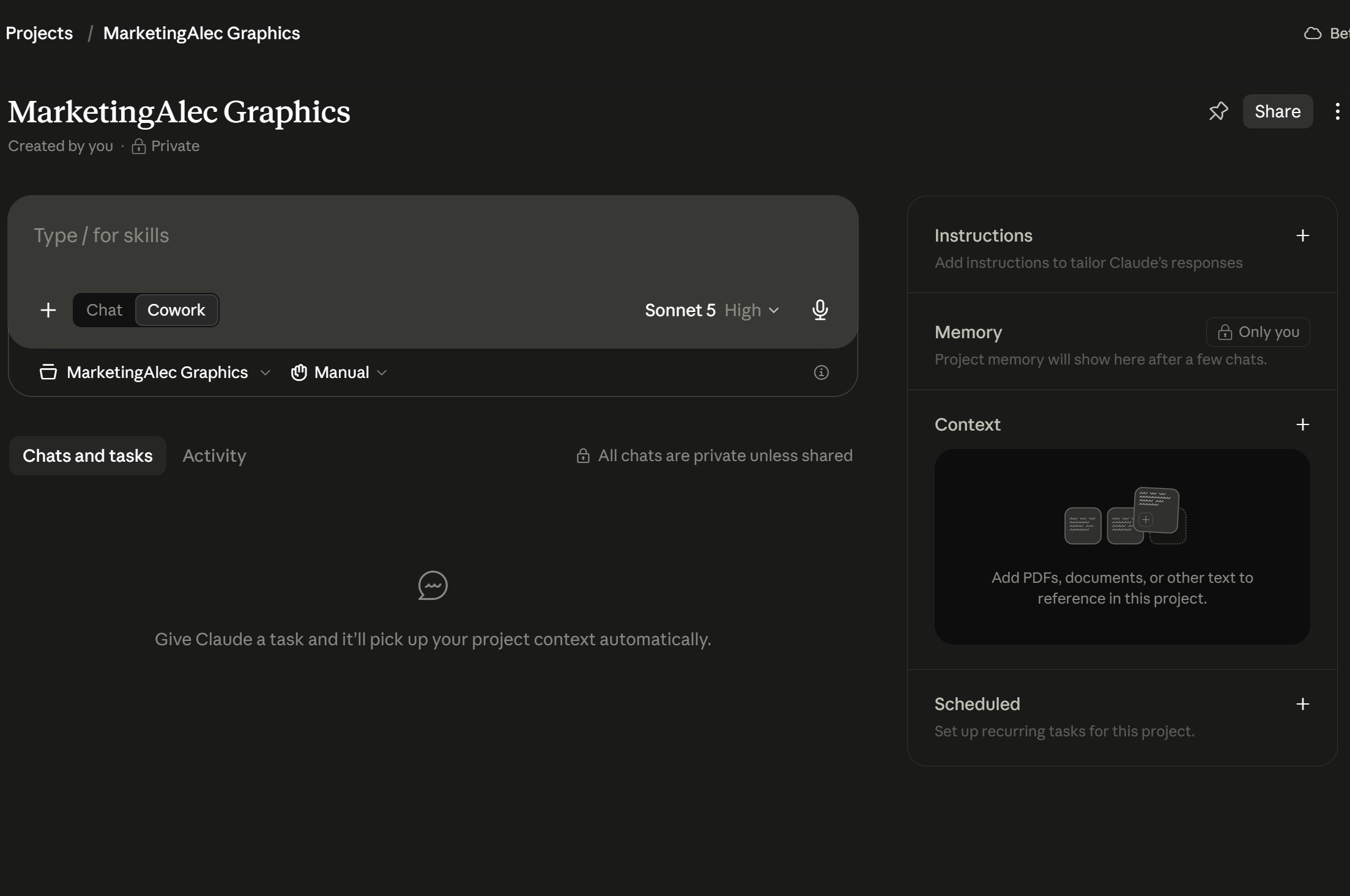
6. Projects
A Project is a persistent workspace scoped to one client or campaign: its own files, links, instructions, and memory, plus project-specific recurring tasks. One project per client keeps brand voice from bleeding across accounts, and sharing a project hands off exactly that context, nothing more.
7. Connectors
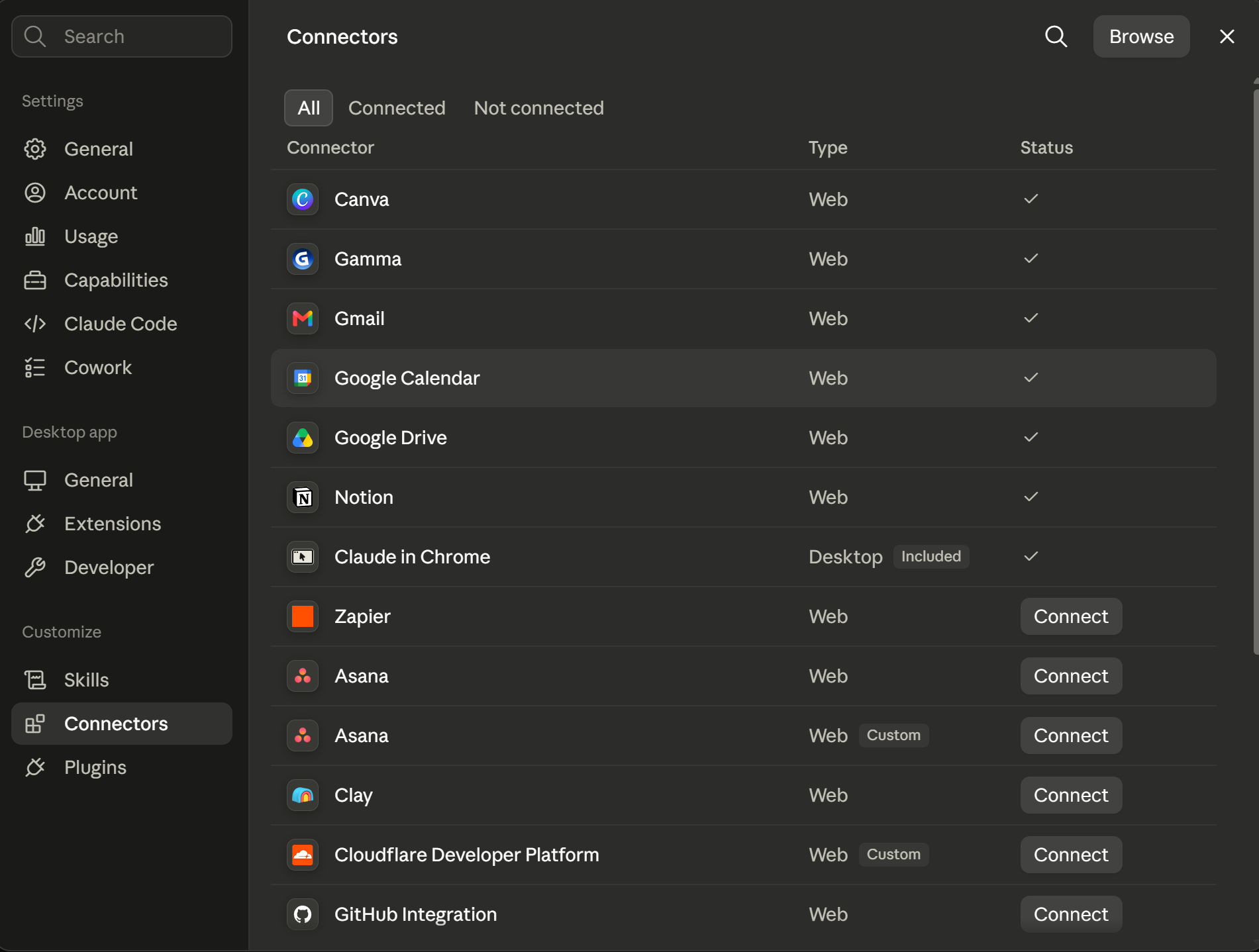
Wire Gmail, Slack, Google Calendar, and Notion once in the connectors panel, and every future task, including scheduled ones, can use them without you reconnecting anything. This is the setup step that turns Cowork from something you paste things into, into something that reads your inbox and calendar directly.
8. Plugins
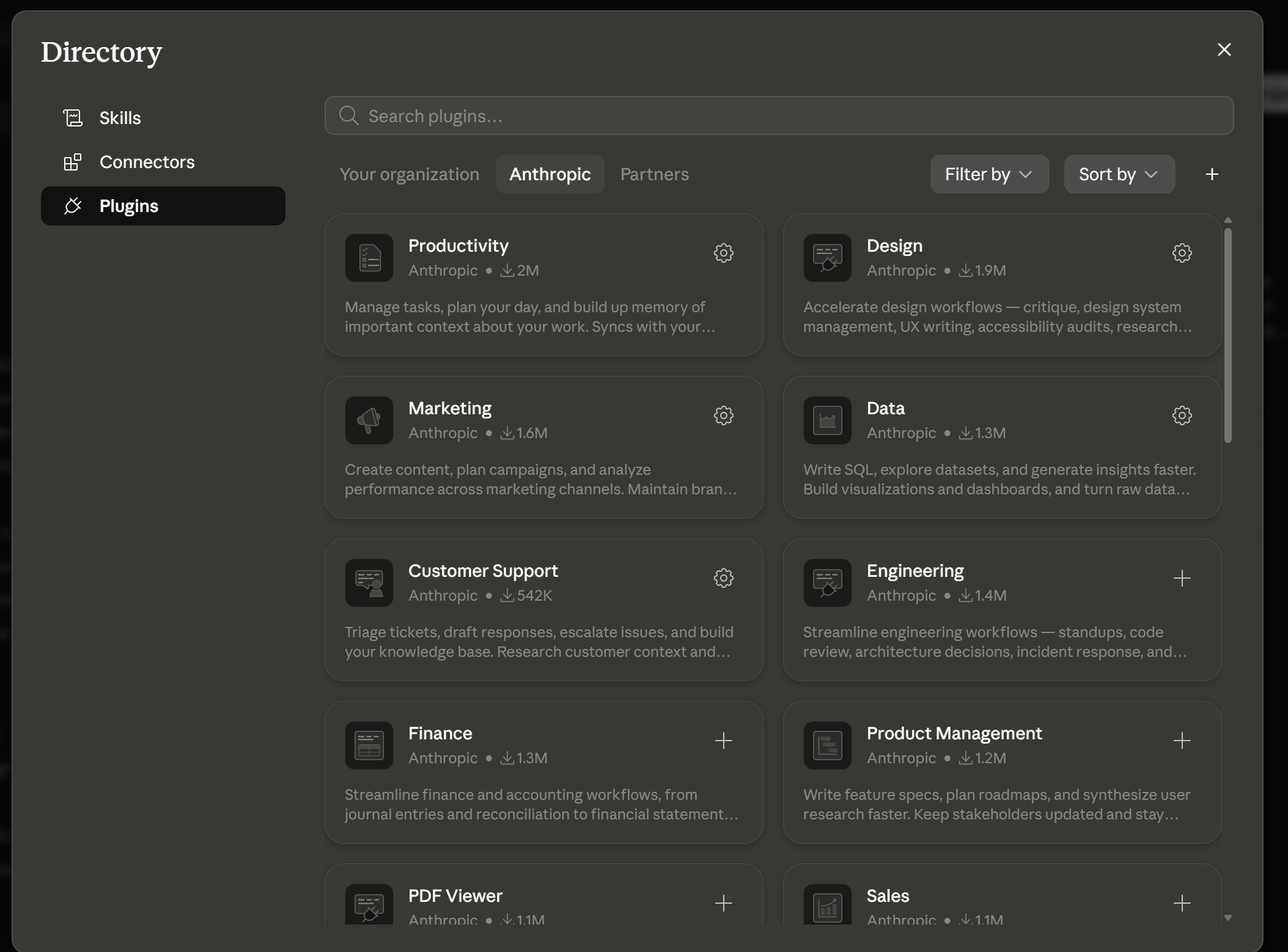
A plugin bundles skills, connectors, and sub-agents into one installable package built for a specific role, so you get a working setup from your first conversation instead of wiring each piece by hand. Treat the plugin library like an app store: install Research, Content Repurposing, or Data Analysis plugins from trusted sources, and check reviews before installing a community one.
9. Excel & PowerPoint
Claude writes formulas (XLOOKUP, nested IFs, dynamic arrays), builds pivot tables, and applies conditional formatting directly inside Excel. Since the shared-context update earlier in 2026, whatever it worked out in your spreadsheet is automatically available when you switch to PowerPoint, no re-explaining the data or copy-pasting results between apps. Ask for the finished file, an expense report with a pivot table, a recap deck built from five meeting transcripts, instead of copying its answers in by hand.
10. Know the limits
Three things worth knowing before you plan real work around this: Cowork activity isn't captured in Audit Logs, Compliance API, or Data Exports (a narrow exception opened up in August 2026 for supported sessions, but it excludes ZDR and HIPAA-configured orgs), so anything genuinely regulated belongs in Claude Code instead. Sessions can't be shared, only individual artifacts can, via a link on Max plans. And the laptop-awake constraint now only applies to tasks touching local files, cloud-only scheduled tasks run independent of your machine (see Schedule above).
Quick start
Create your folder
Set up ~/Claude Cowork/ with subfolders: ABOUT ME, OUTPUTS, and one per project or client.
Write your brain file
In ABOUT ME/, write brand.md with your role, tone, deliverables, and constraints. Keep it under 2 pages.
Open Cowork in that folder
Point Claude Desktop at it. Claude reads brand.md every session from here on.
Set Global Instructions
In Cowork settings, add your name, company, default voice, and banned phrases so you set them once and forget them.
Tips to remember
Dispatch is the unlock
Messaging from your phone while your laptop does the work is what makes Cowork feel like an actual coworker, not a chatbot.
Use Projects for all client work
One project per client prevents brand bleed and keeps handoffs clean when you need to share.
Cloud scheduled tasks don't need your laptop on
That constraint only applies now if the task touches local files or apps. A morning brief built from connectors alone runs whether your computer is open or not.
Cowork burns usage faster than chat
Close inactive sessions, move high-volume work to Claude Code instead, and upgrade to Max if you're rate-limited more than once a week.
Get the full clickable guide
All 10 tips, the quick-start steps, and the tips checklist in one clickable PDF, ready to keep open while you set up Claude Cowork.
10 Claude Code Tips for Marketers
The same engine, the workshop version, skills, sub-agents, and routines that run 24/7.
Getting Started with Claude
The non-developer's setup guide, from account to first real workflow.
Claude Cowork vs Claude Code: Same Engine, Two Doors
The full breakdown of when Cowork gets the job done without a terminal, and when it's worth learning Code instead.
Who's behind this? Alec Newcomb, Founder of MarketingAlec and ScaledOn, runs both Cowork and Code daily on real client work.
Meet Alec →